Description: This article will show how to manually clear the print queue in Windows 10 & 11. This can be helpful to get a printer working if it says there are documents waiting but there is no output from the printer.
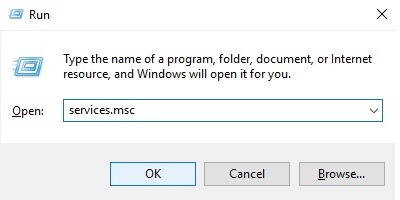
- On the keyboard, press the Windows key + R, then type services.msc into the window that opens. Select OK.
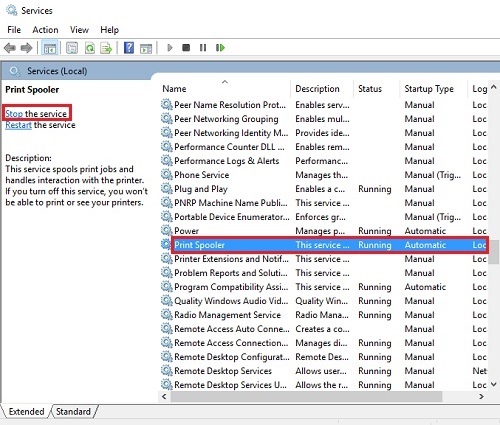
- In the Services window, scroll down and select Print Spooler. Select Stop for the service.
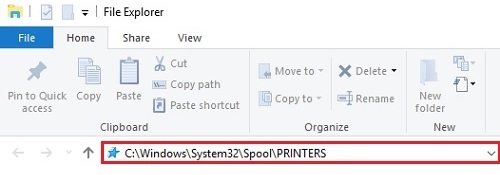
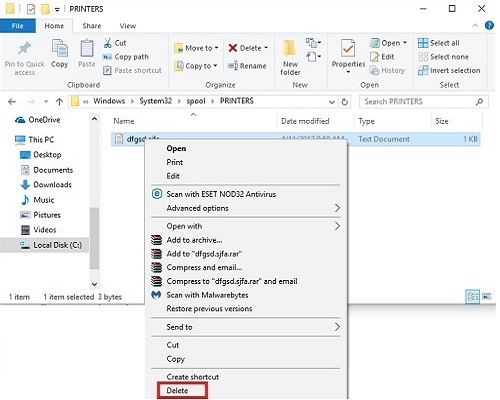
- Open File Explorer. Navigate to C:\Windows\System32\Spool\PRINTERS then press Enter on the keyboard.
- Press Control + A on the keyboard to select all items. Right click on any of the selected items, then select Delete to remove all print jobs.
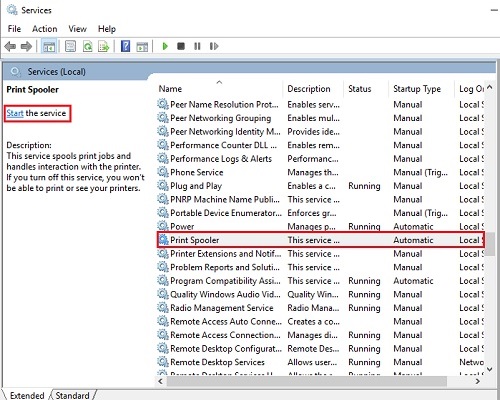
- Return to the Services window, and Start the print spooler. There should now be no documents in the print queue.